How to Set Up Your Email (Plesk Webmail) on All Devices
This guide will help you configure your email account on:
- Mobile Gmail App (Android)
- Outlook App (Android/iPhone)
- Microsoft Outlook (Desktop)
Before You Start (Important Details)
You will need the following:
- Email Address (e.g.
info@yourdomain.com) - Email Password
- Incoming Server:
mail.yourdomain.com - Outgoing Server:
mail.yourdomain.com
Recommended Settings:
- IMAP Port: 993 (SSL)
- SMTP Port: 465 (SSL)
Setup on Gmail App (Android)
Steps:
- Open the Gmail app
- Tap your profile icon (top right)
- Tap Add another account
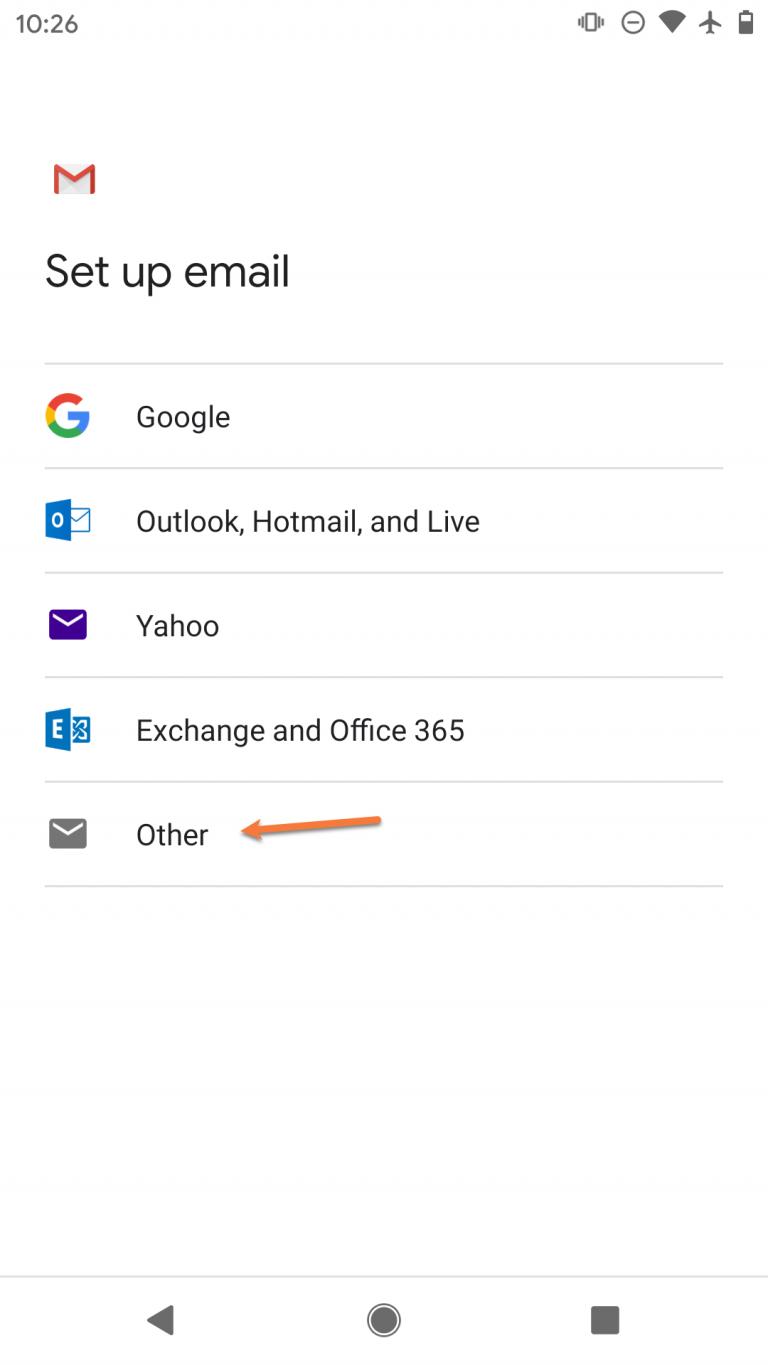
- Select Other
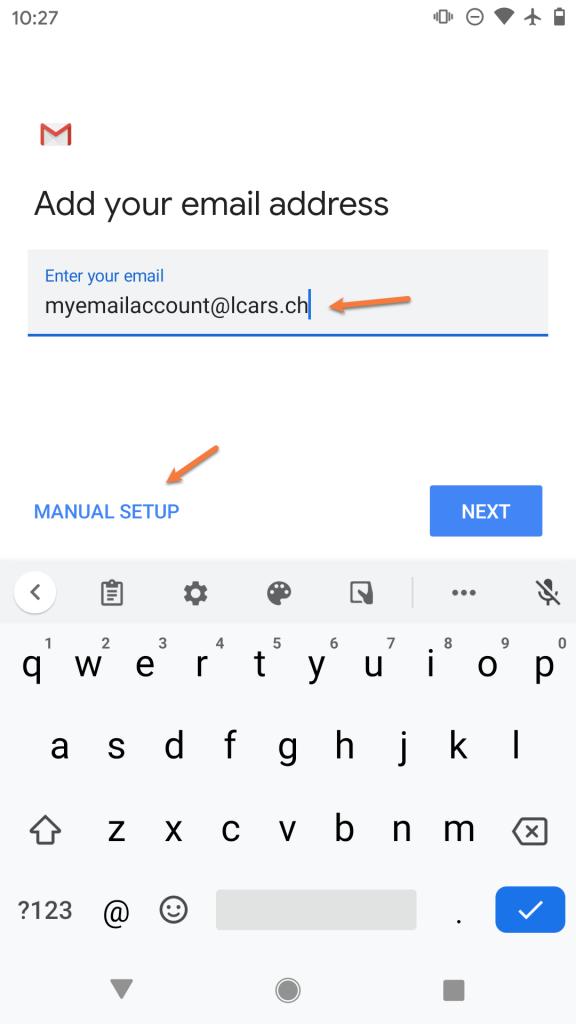
- Enter your email address → Tap Next
- Choose IMAP
- Enter your password → Tap Next
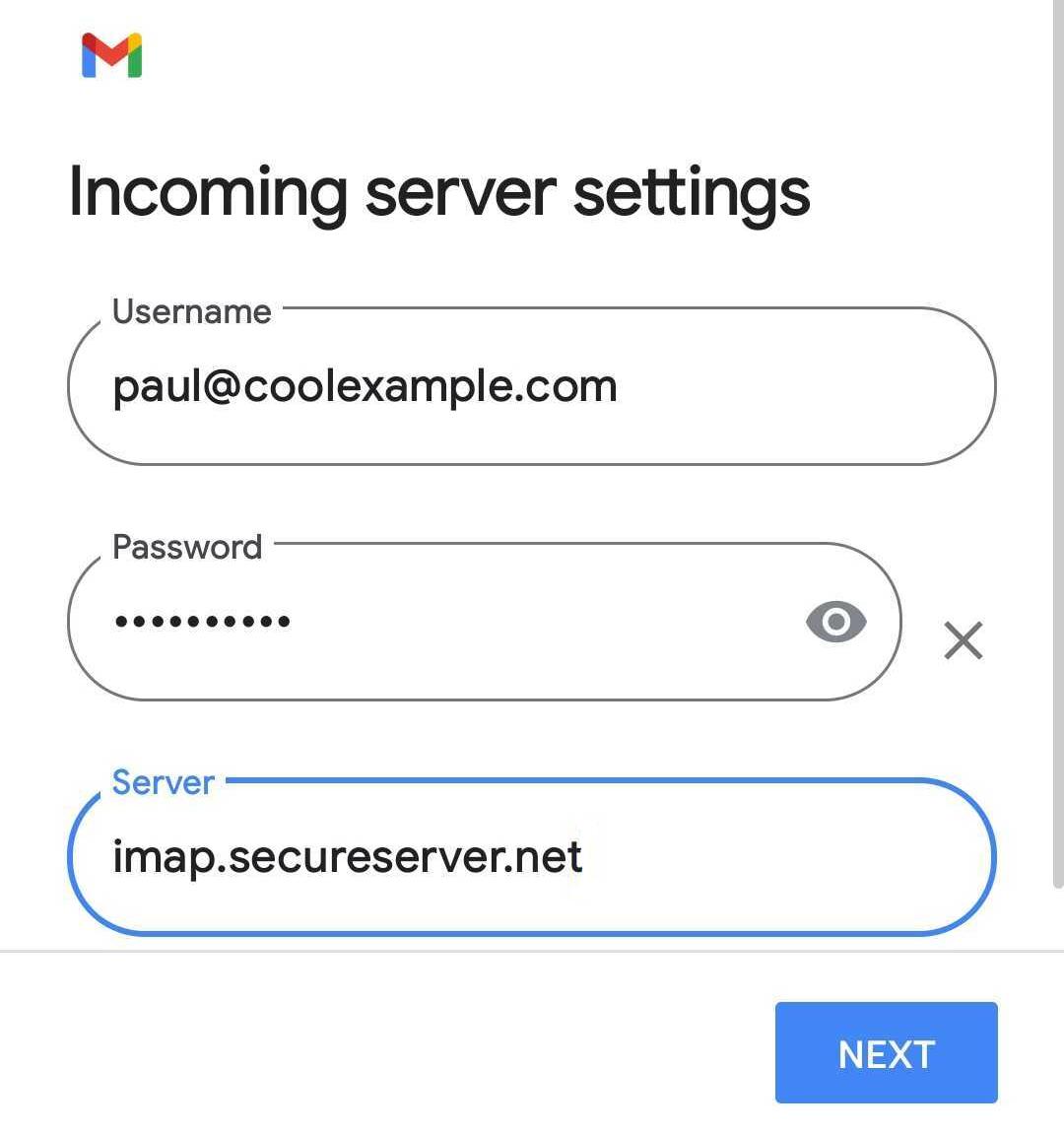
Incoming Server:
- Username: Your full email
- Password: Your password
- Server:
mail.yourdomain.com - Port: 993
- Security: SSL/TLS
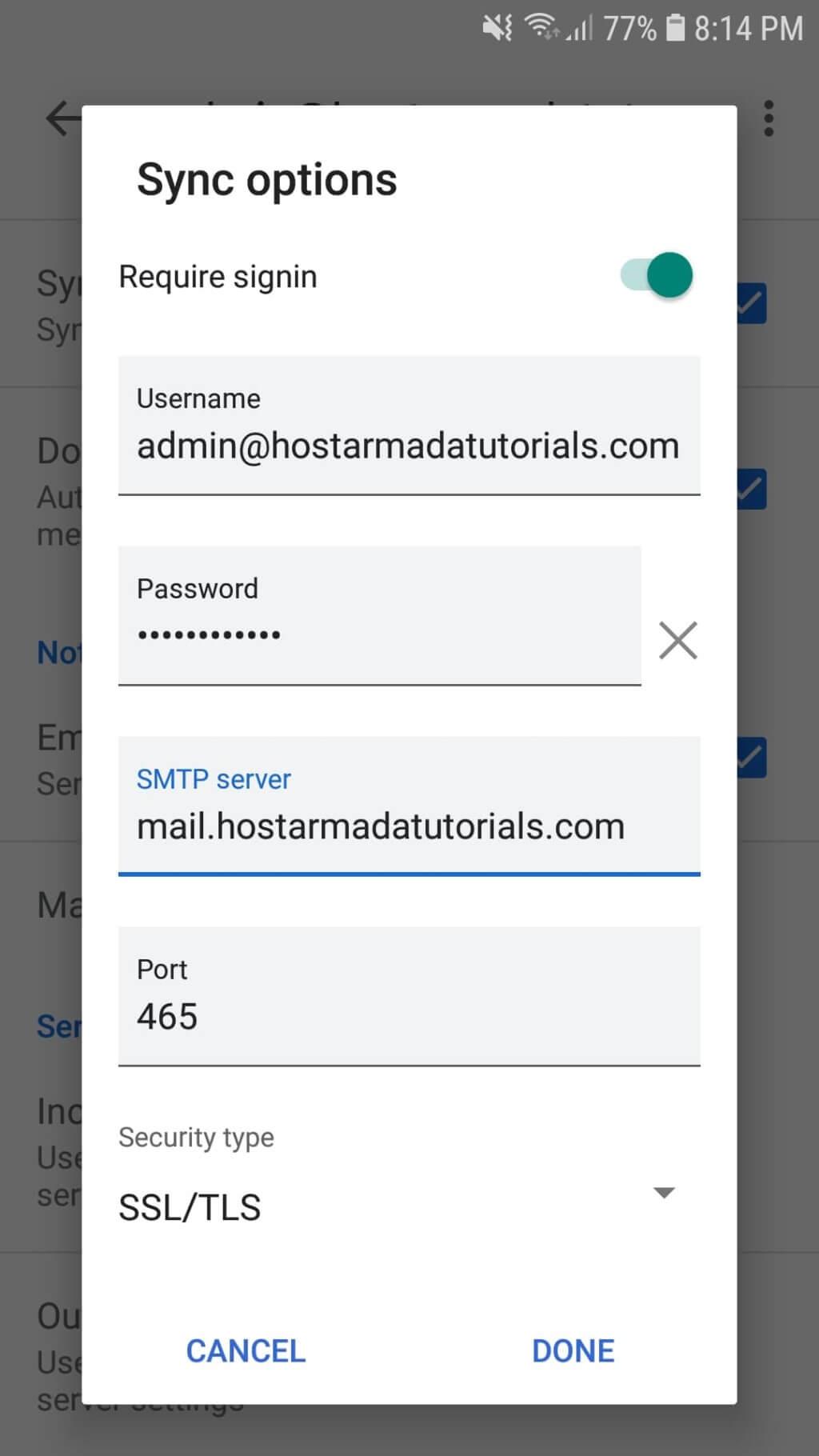
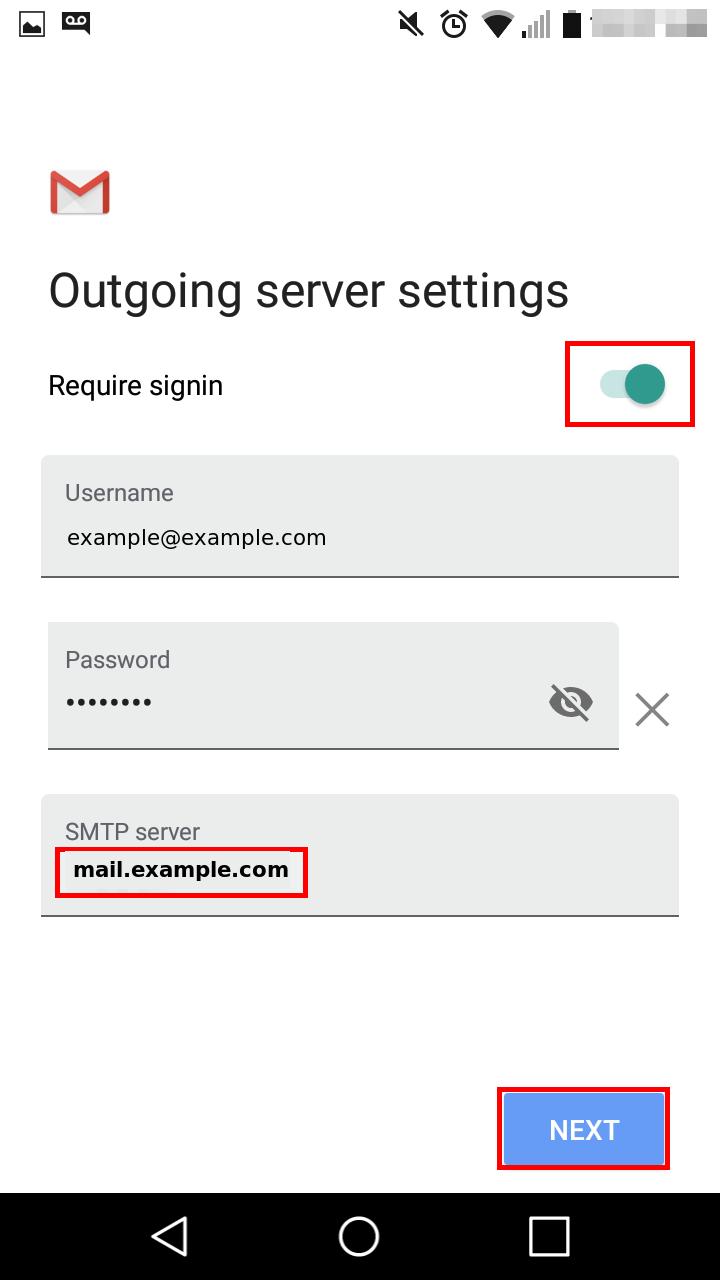
Outgoing Server:
- SMTP Server:
mail.yourdomain.com - Port: 465
- Security: SSL/TLS
- Require login: Yes
- Tap Next
- Finish setup
Setup on Outlook App (Android / iPhone)
Steps:
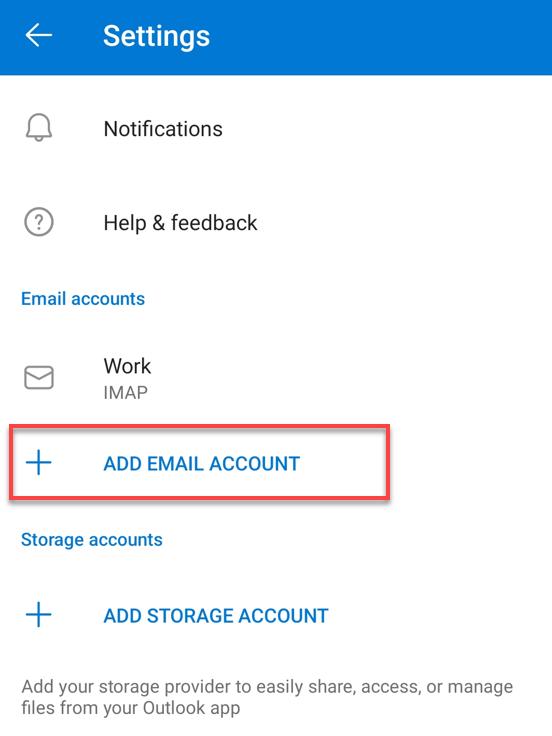
- Open the Outlook app
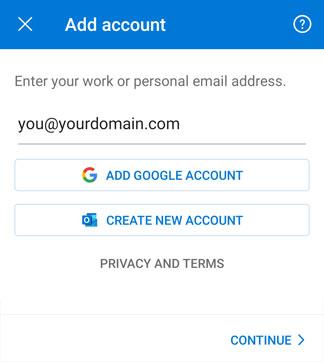
- Tap Add Account
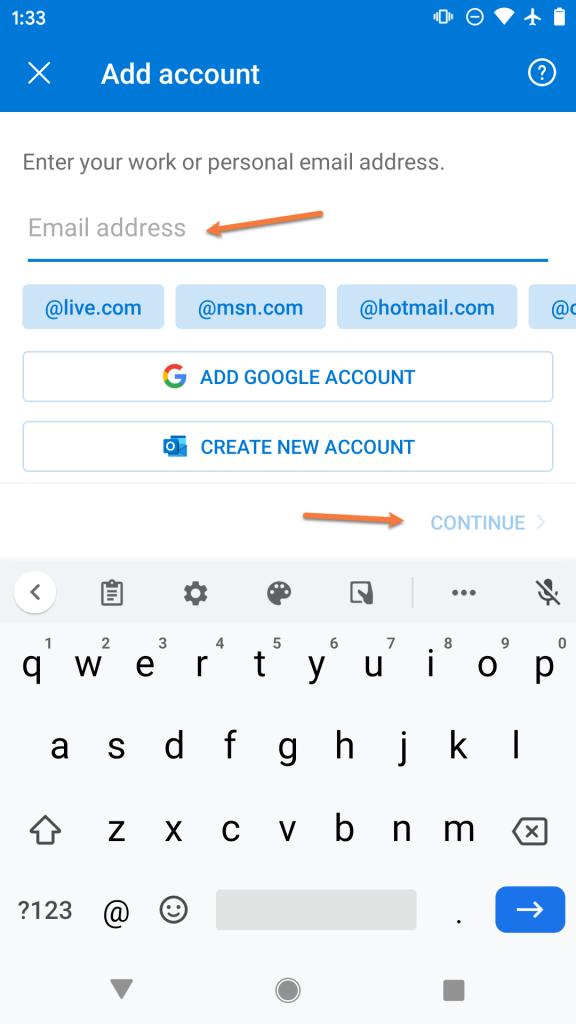
- Enter your email → Tap Continue
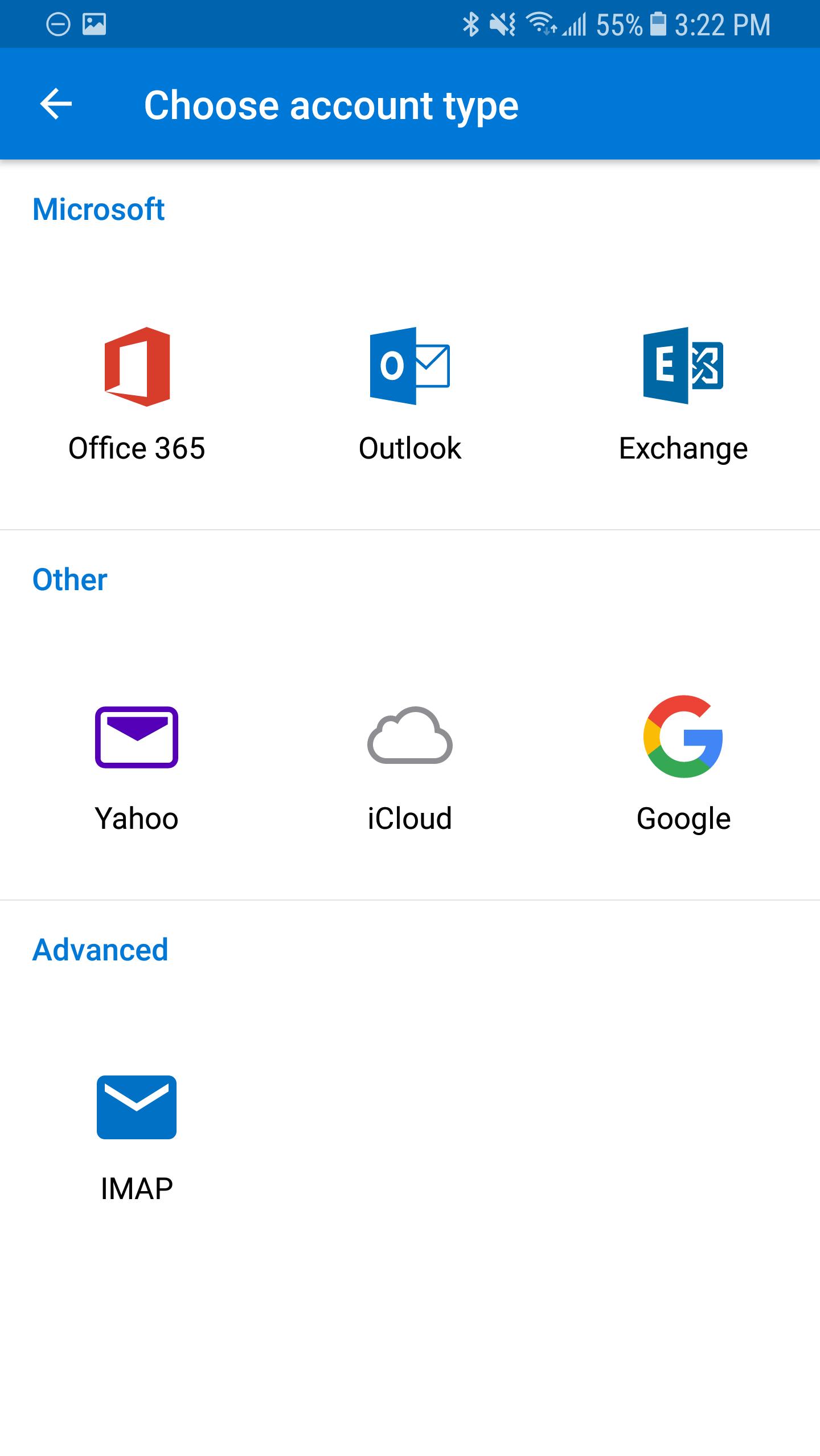
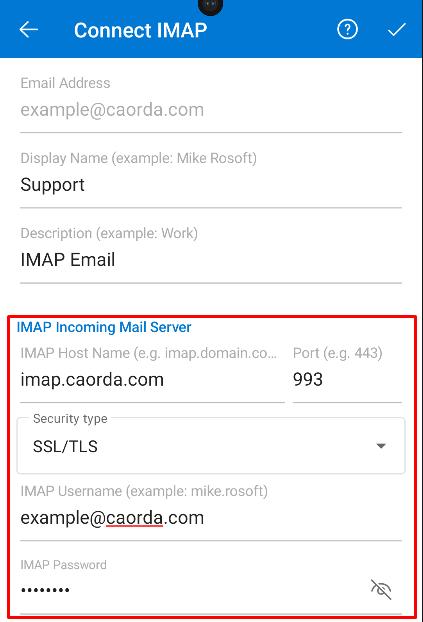
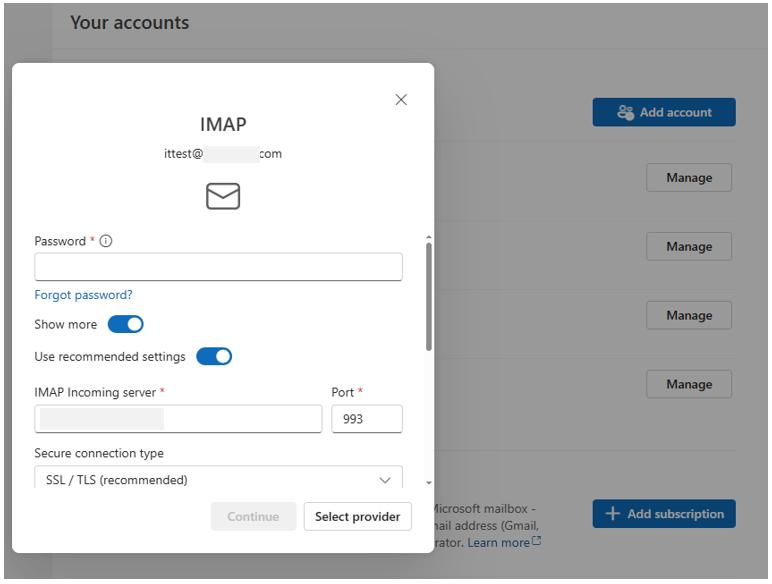
- Tap IMAP
- Enter your password
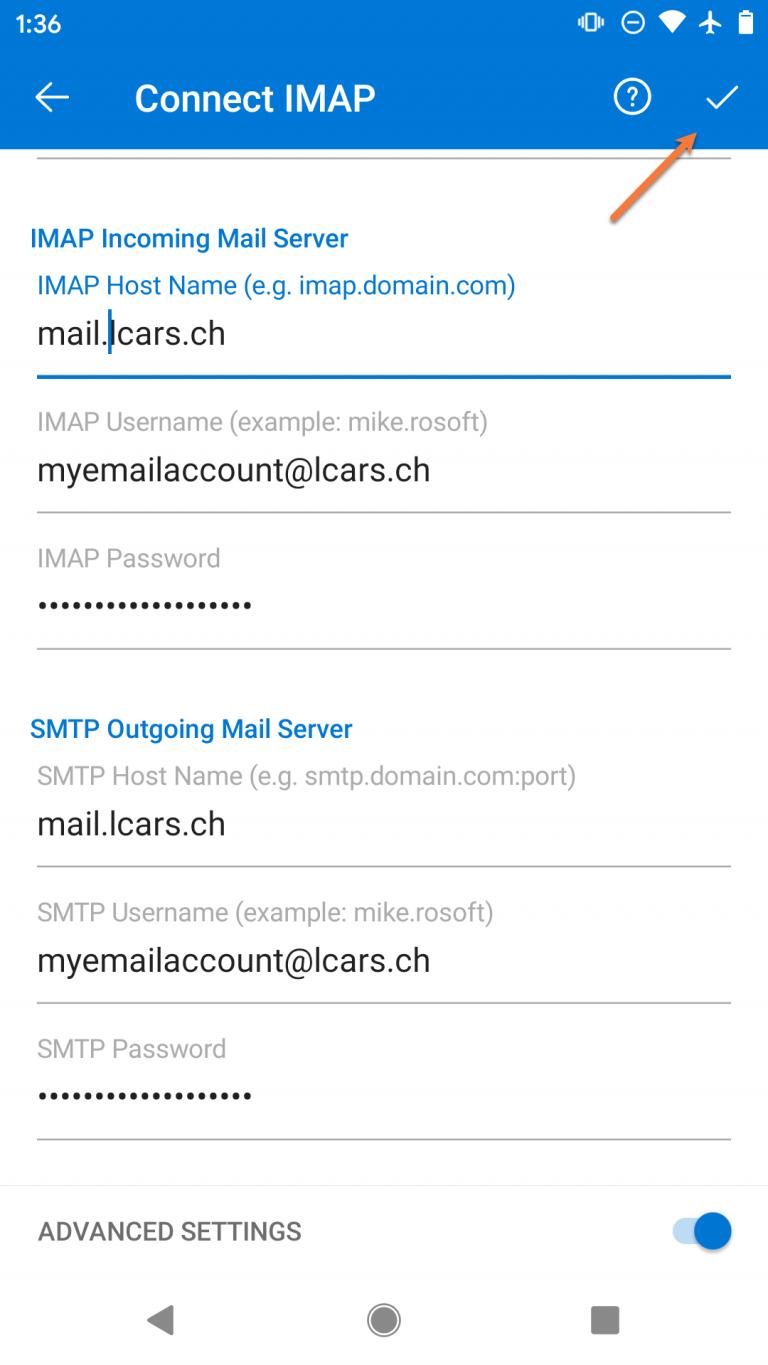
Configure Settings:
Incoming Mail Server:
- Server:
mail.yourdomain.com - Port: 993
- Encryption: SSL/TLS
Outgoing Mail Server:
- Server:
mail.yourdomain.com - Port: 465
- Encryption: SSL/TLS
- Username & Password required
- Tap the checkmark / sign in
- Done
Setup on Microsoft Outlook (Desktop)
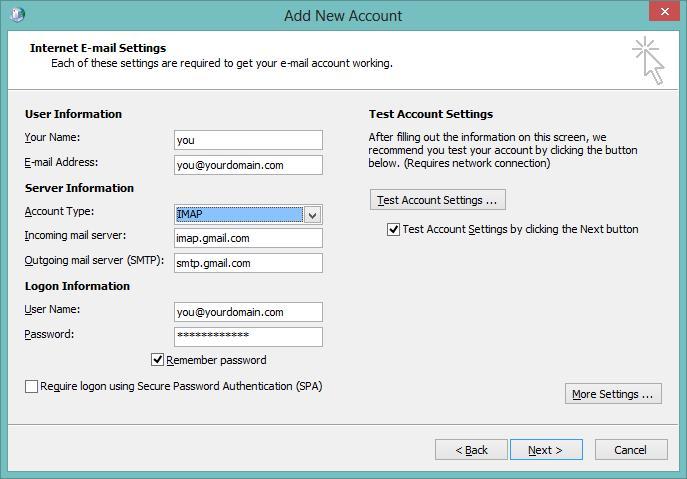
Steps:
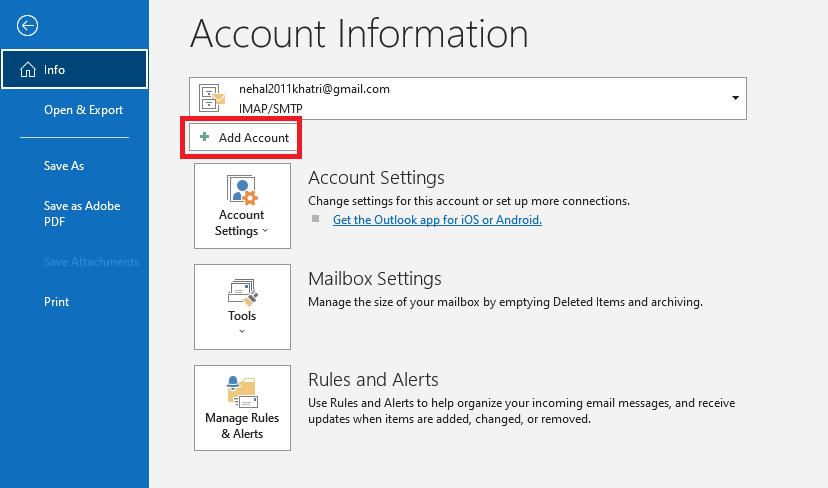
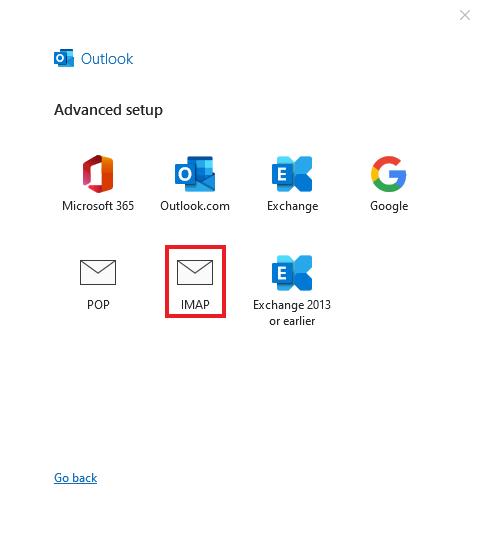
- Open Microsoft Outlook
- Go to File → Add Account
- Enter your email → Click Advanced Options
- Tick Let me set up my account manually
- Click Connect
- Choose IMAP
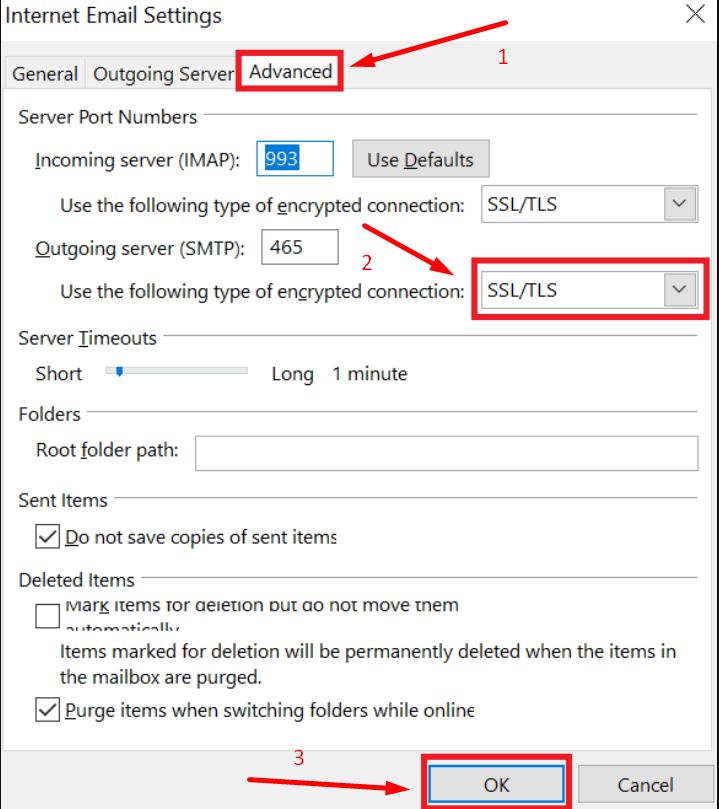
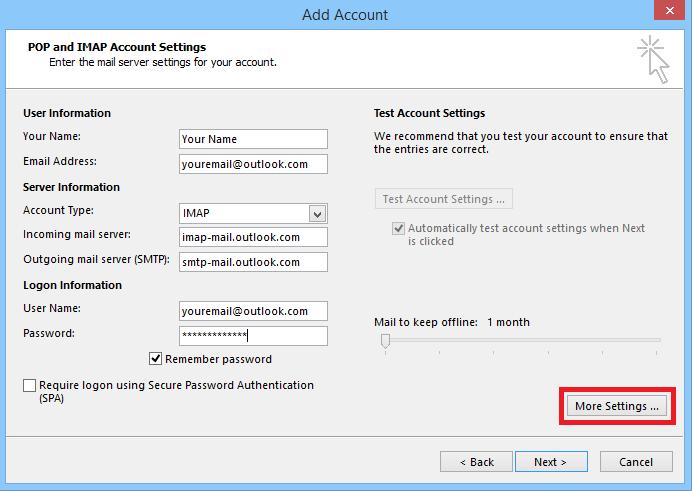
Incoming Mail (IMAP):
- Server:
mail.yourdomain.com - Port: 993
- Encryption: SSL/TLS
Outgoing Mail (SMTP):
- Server:
mail.yourdomain.com - Port: 465
- Encryption: SSL/TLS
- Authentication: Required
Login Details:
- Username: Full email address
- Password: Email password
- Click Next
- Setup complete
Access Webmail (Browser)
You can also access email via browser:
- URL:
https://webmail.yourdomain.com
Login using your email and password.
⚠️ Common Issues & Fixes
❌ Incorrect Password
- Double-check password
- Reset via Plesk if needed
❌ Cannot Connect to Server
- Ensure you are using:
https://mail.yourdomain.com
- Check SSL ports (993 / 465)
❌ SSL Warning
- Accept certificate if prompted (common on first setup)
✅ Recommended Settings Summary
| Setting Type | Value |
|---|---|
| Incoming Server | mail.yourdomain.com |
| Port | 993 |
| Security | SSL/TLS |
| Outgoing Server | mail.yourdomain.com |
| Port | 465 |
| Authentication | Required |